5. ID5 Integration
ID5 Integration in GTM Template
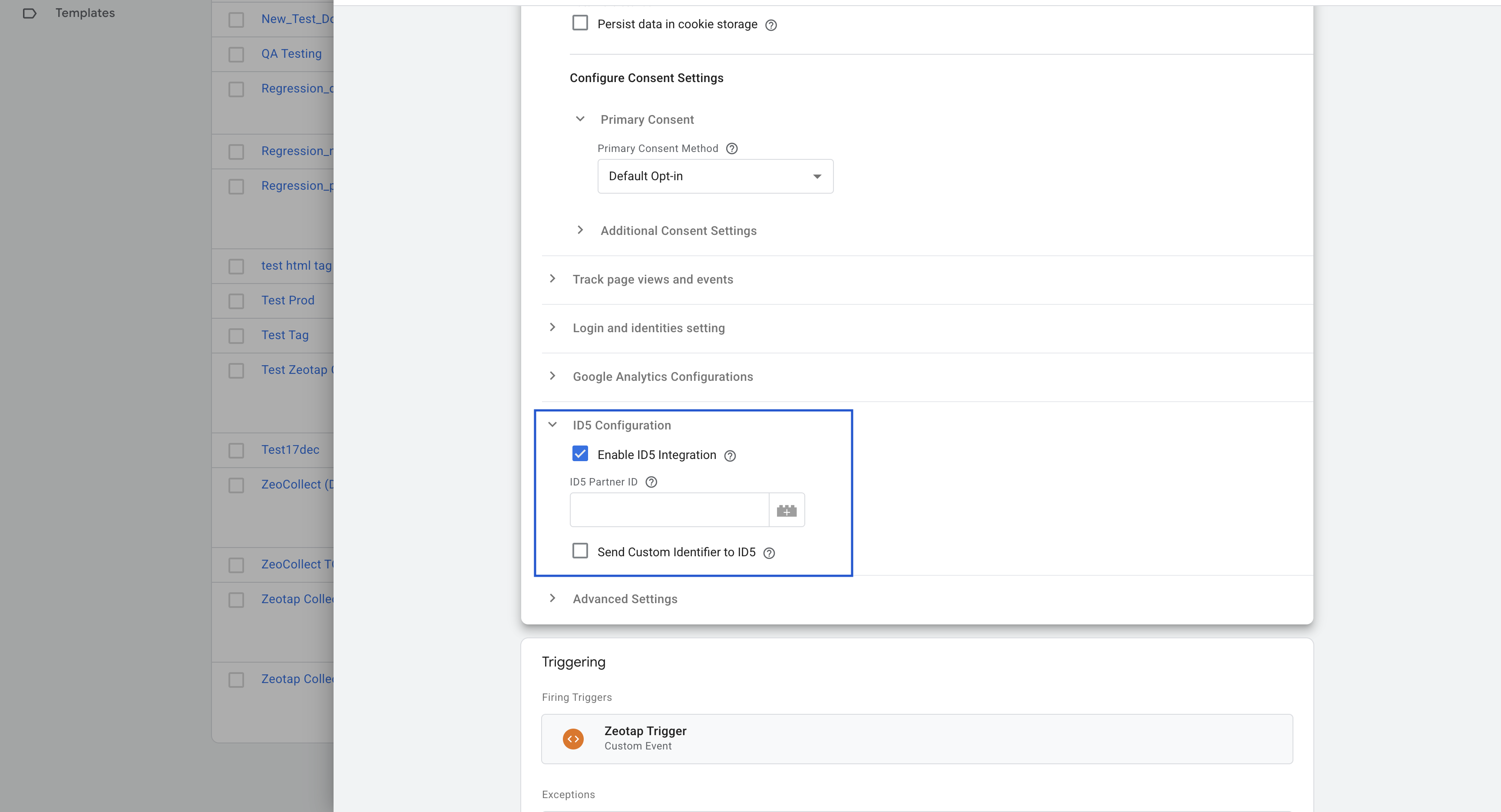
To enable ID5 Universal ID integration via the Zeotap Web SDK GTM template, follow these steps:
-
Enable ID5
- In the template configuration, check the box labeled Enable ID5. This will activate the ID5 Universal ID integration in the SDK.
-
ID5 Partner ID
- Enter your specific ID5 Partner ID in the provided input field. This is a required numeric value provided by ID5 for your account.
-
Send Partner Data to ID5 (Optional)
- If you want the SDK to send user PII (hashed email/phone) to ID5, check the box labeled Send Partner Data to ID5. This option requires that ID5 is enabled. By default, this is not enabled.
Example Configuration Table
| Option | Type | Description |
|---|---|---|
| Enable ID5 | Boolean | Check to enable ID5 Universal ID integration. |
| ID5 Partner ID | Number | Your unique partner ID from ID5. Required if ID5 is enabled. |
| Send Partner Data to ID5 | Boolean | (Optional) Check to allow sending hashed PII to ID5. Defaults to unchecked. |
Note: Make sure you have obtained your Partner ID from ID5 before enabling this integration.